 abacova
 abacova on your phone
There are three ways to carry abacova in your pocket. The iPhone and Android apps give you notifications and biometric unlock; installing from your browser works on any phone and downloads nothing. Pick whichever fits.
Which one suits you
| Which one suits you | Native app (iPhone & Android) | From your browser |
|---|---|---|
| Notifications | Yes | Not yet |
| Biometric unlock | Yes, with Face ID or fingerprint | No |
| Install effort | A download from the App Store or Google Play | One tap, nothing to download |
| How updates arrive | Automatically, through your app store | Always the latest when you open it |
The native apps are on the App Store and on Google Play. If your phone has neither store, if abacova is not listed in your country, or if you would rather not install anything, the browser route works just as well.
iPhone: from the App Store
The native app. Notifications, Face ID unlock, and everything else. Requires iOS 16.4 or later.


- Scan the QR code with your iPhone camera, or tap the App Store button from the phone itself.
- Tap Get and confirm the install.
- Open abacova and sign in with the same account you use on your computer. Your data is already there.
Android: from Google Play
The native app. Notifications, fingerprint or face unlock, and everything else — the same features as the iPhone version.


- Scan the QR code with your phone camera, or tap the Google Play button from the phone itself.
- Tap Install and wait for the download to finish.
- Open abacova and sign in with the same account you use on your computer. Your data is already there.
Any phone: from your browser
abacova installs like an app straight from your browser: its own icon on the home screen and a full screen, with no browser bars. It downloads nothing and takes practically no space. This is the route for anyone without an app store on their phone, anyone who cannot find abacova in their country, and anyone who would rather not install anything.
Android (Chrome)
- Open app.abacova.com in Chrome.
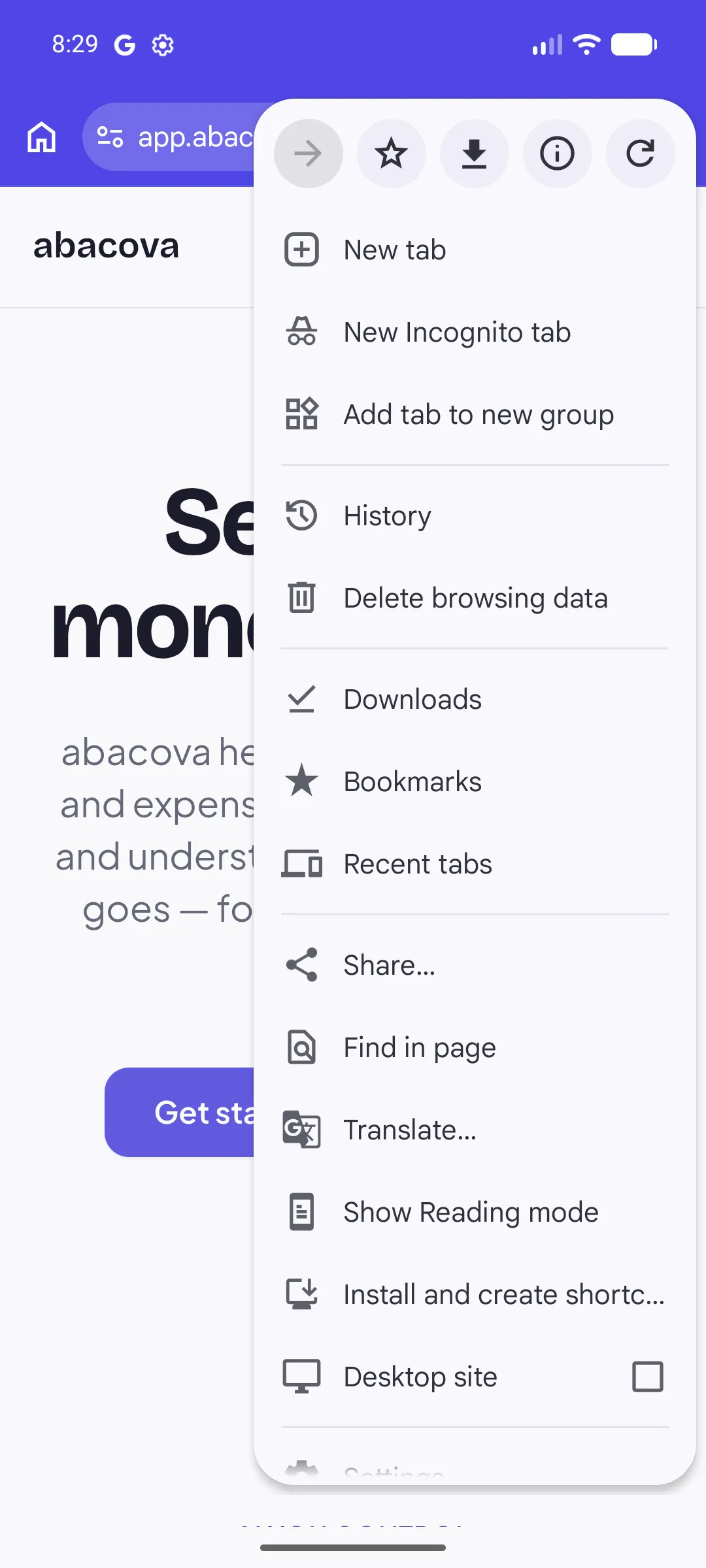
- Tap the three-dot menu, top right, and choose the install option. Depending on your version of Chrome it reads Install and create shortcut, Add to Home screen, or Install app.
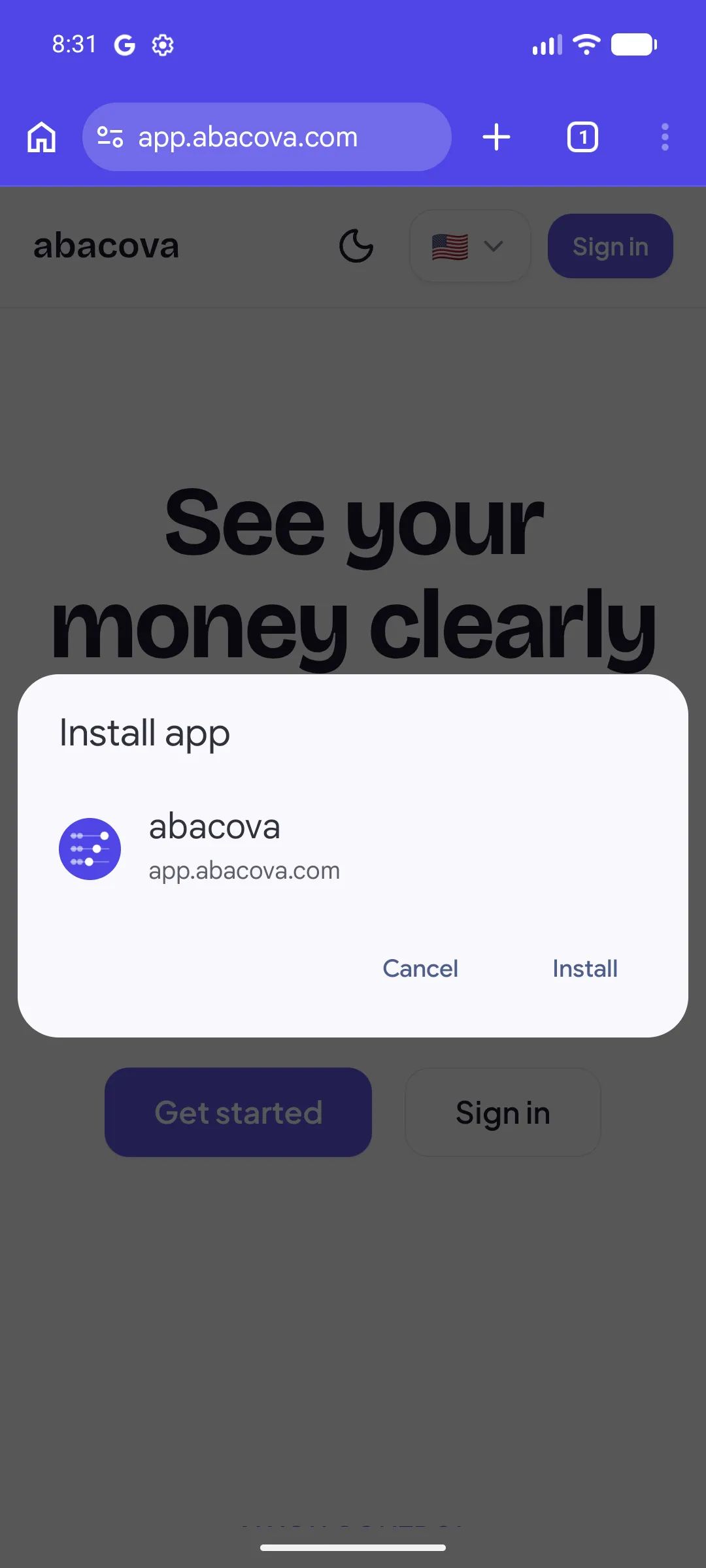
- A box titled Install app appears, showing the abacova icon. Confirm with Install.
- Open it from its home-screen icon, not from Chrome — that is what makes it open full screen.
iPhone (Safari)
- Open app.abacova.com in Safari. It has to be Safari — the option does not appear in other iPhone browsers.
- Tap the Share button — the square with an arrow pointing up — in the bottom bar.
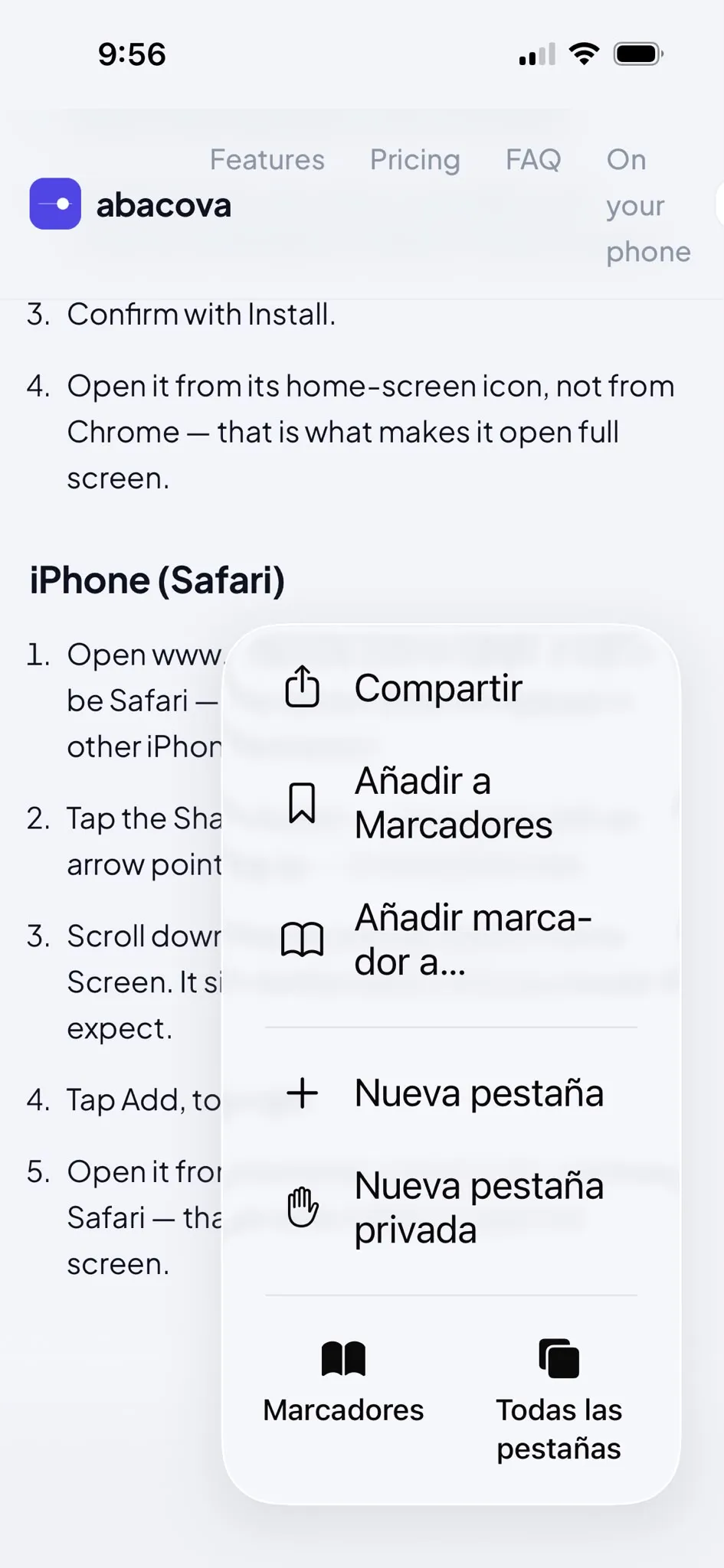
- Scroll down the list and tap Add to Home Screen. It sits further down than you would expect.
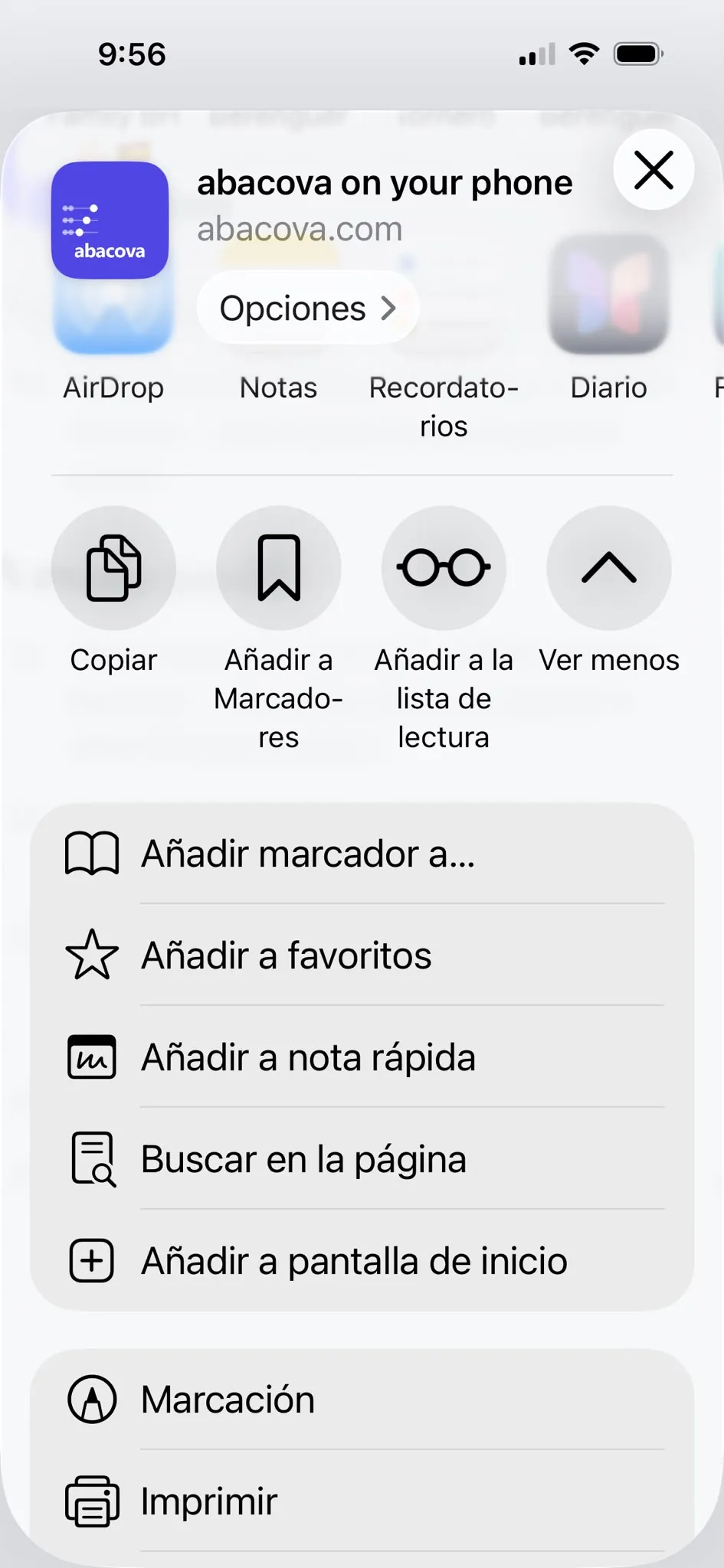
- Tap Add, top right.
- Open it from its home-screen icon, not from Safari — that is what makes it open full screen.