
Connect abacova to your AI
With the abacova connector, your AI assistant can look up your accounts, transactions, budgets and reports and answer with your real numbers. Set it up once, then just ask. Pick your app below: each one has its own steps.
Before you start
- The connector is part of the Pro plan: your organization needs to be on Pro.
- Each organization can have up to 10 active connections at a time. Revoked connections don't count.
- Claude and ChatGPT connect in one click. The other apps use a personal token, which you create in abacova under Settings → Integrations and which is shown only once.
The server URL to paste into your AI app:
https://app.abacova.com/api/v1/mcp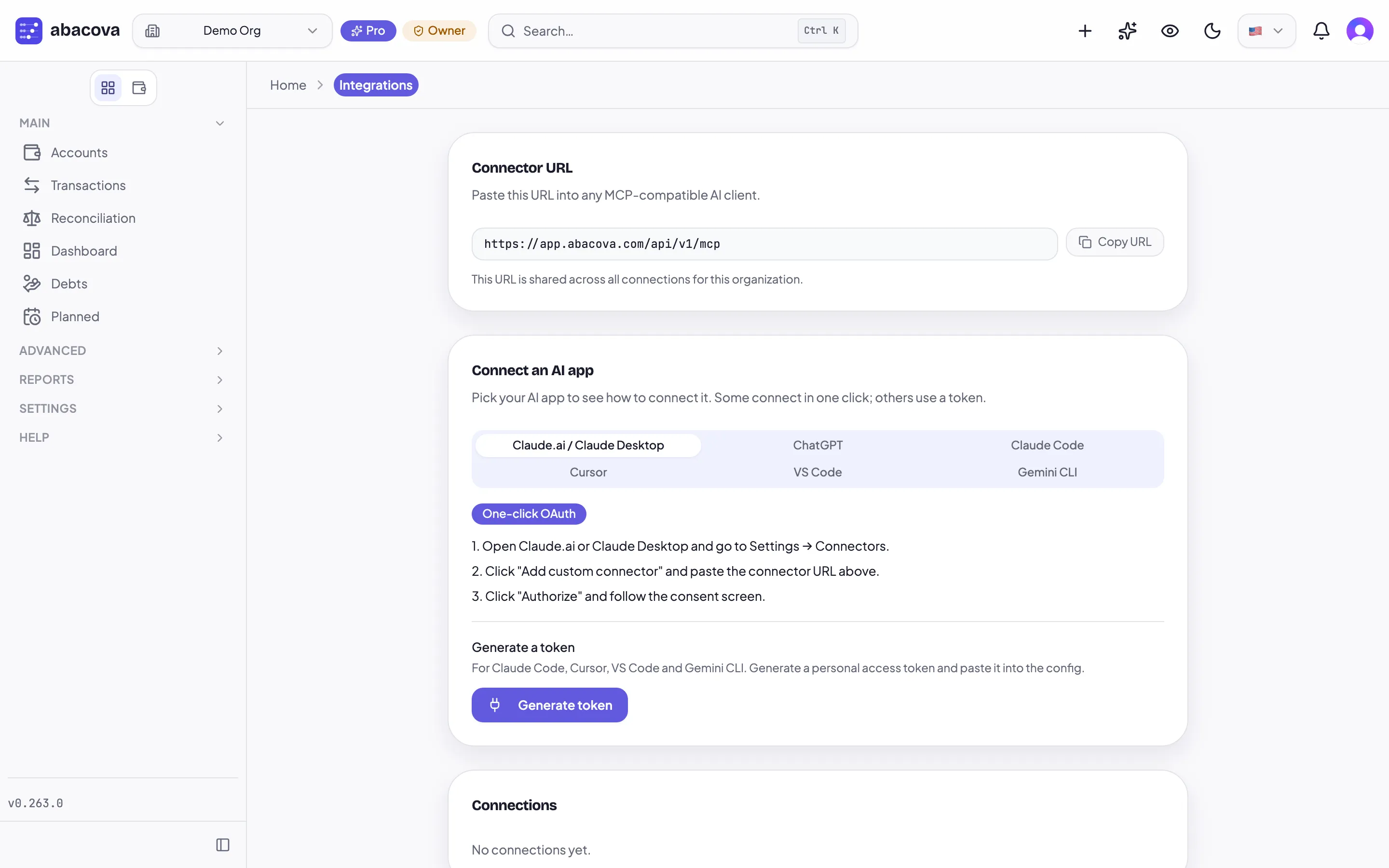
Claude.ai / Claude Desktop
How it signs in: One click: you sign in to abacova and approve. No token needed.
- In Claude.ai or Claude Desktop, open Settings → Connectors.
- Click “Add custom connector”, give it a name (for example, abacova) and paste the server URL.
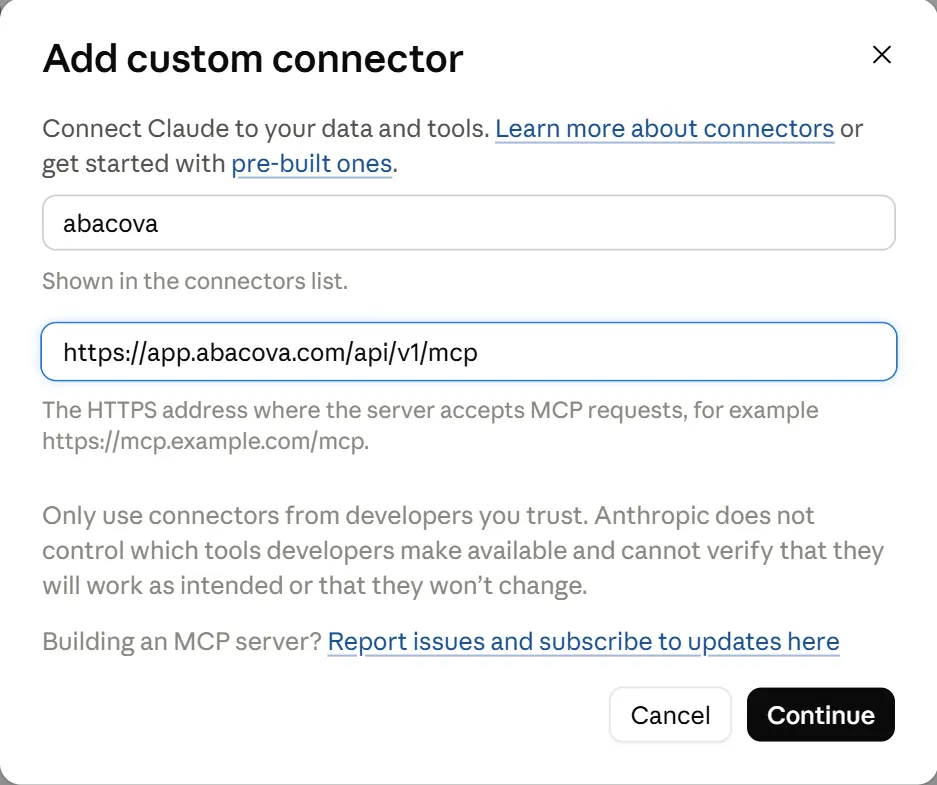
- Click “Connect”. abacova opens: sign in, choose whether to allow changes, and approve the connection.
- In a new chat, check that abacova is switched on in the tools menu, then ask your question.
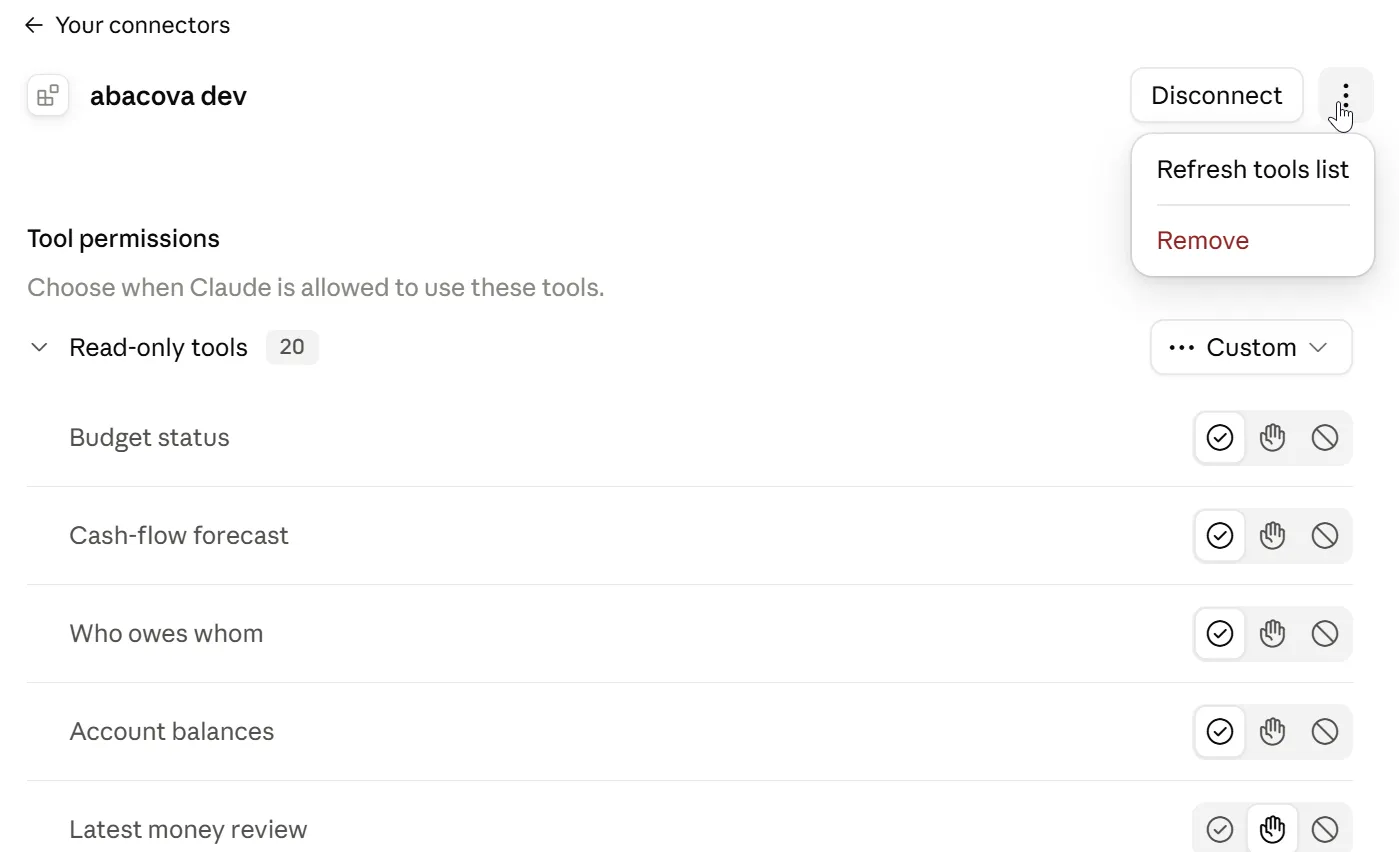
- Turned on “Allow changes” after connecting? Claude keeps the tool list it saw first: in Settings → Connectors, open your connector, choose ⋮ → Refresh tools list, and start a new chat.
On Claude's Team or Enterprise plans, an owner may need to add the connector for the whole organization first.
A first prompt to try
How much did I spend on groceries last month, compared with the month before?
ChatGPT
How it signs in: One click (OAuth): you sign in to abacova and approve. Available on ChatGPT's paid plans.
- In ChatGPT, open Plugins in the sidebar and click Add → “Add custom MCP server”.
- Give it a name (for example, abacova), paste the server URL under Connection and choose OAuth as the authentication.
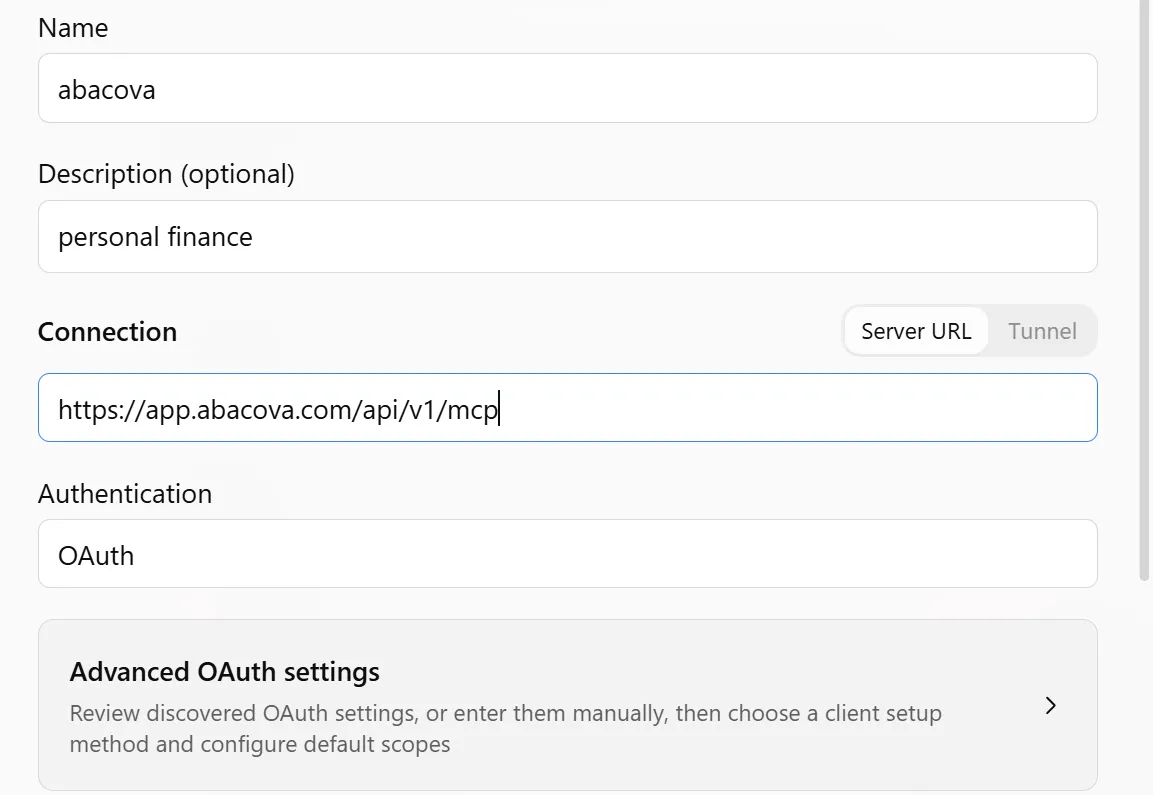
- Confirm. abacova opens: sign in, choose whether to allow changes, and approve the connection.
- In a new chat, turn on abacova in the tools menu and ask your question. ChatGPT may apply a change without asking: check the plugin's permissions if you'd rather it asked.
A first prompt to try
Which budgets have I gone over this month?
Claude Code
How it signs in: A personal token, sent as a header.
- In abacova, open Settings → Integrations and click “Generate a token”. Copy it: it is shown only once.
- In your terminal, run this command, replacing <YOUR_TOKEN> with your token:
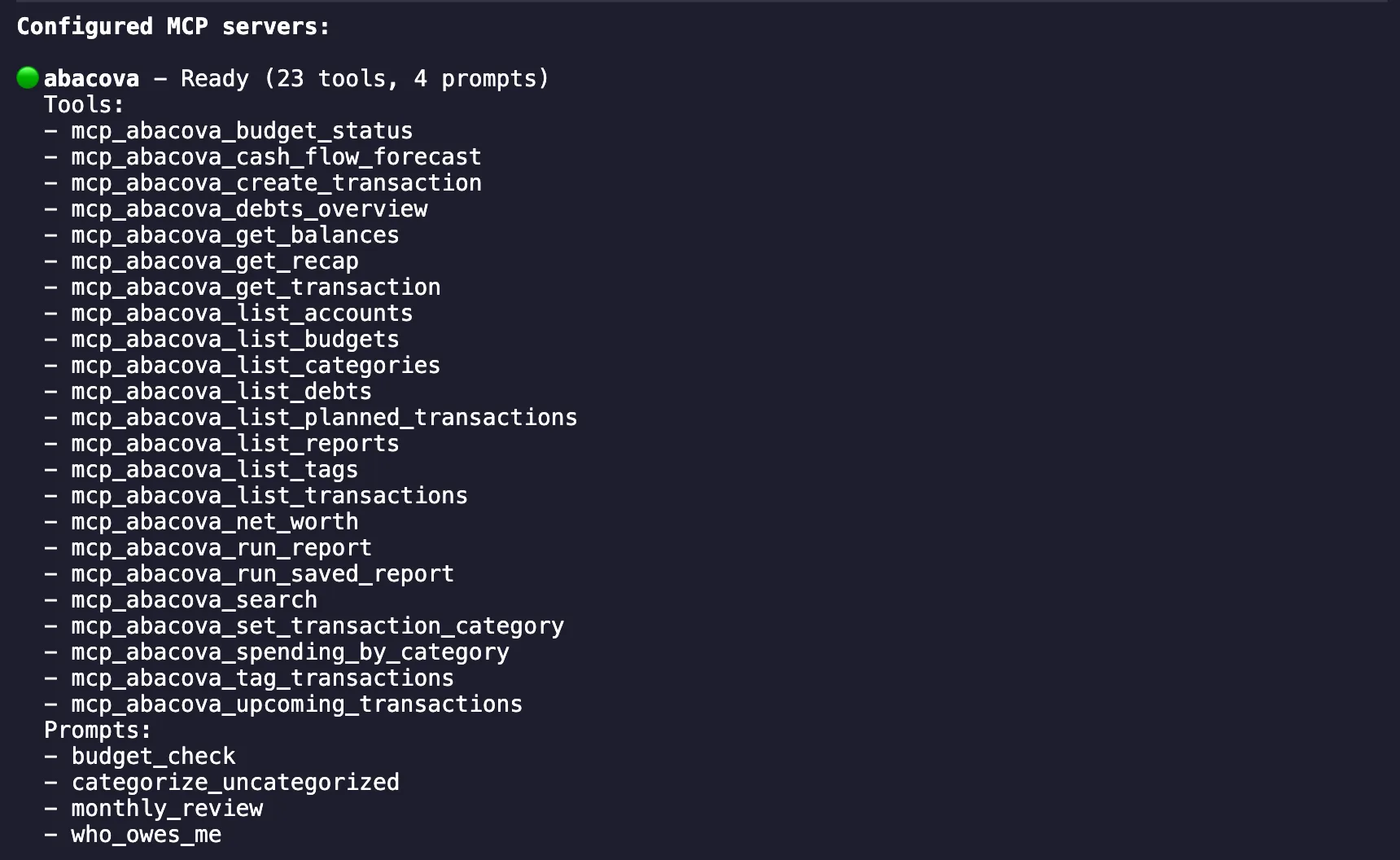
claude mcp add --transport http abacova https://app.abacova.com/api/v1/mcp --header "Authorization: Bearer <YOUR_TOKEN>" - Start Claude Code and run /mcp to check that abacova shows as connected.
A first prompt to try
List my accounts with their current balances.
Cursor
How it signs in: A personal token, in a configuration file.
- In abacova, open Settings → Integrations and click “Generate a token”. Copy it: it is shown only once.
- Open ~/.cursor/mcp.json (create it if it doesn't exist) and add this, replacing <YOUR_TOKEN> with your token:
{ "mcpServers": { "abacova": { "url": "https://app.abacova.com/api/v1/mcp", "headers": { "Authorization": "Bearer <YOUR_TOKEN>" } } } } - In Cursor's settings, check that abacova is in the list of MCP servers and switched on. Then ask in the agent chat.

A first prompt to try
What have my five biggest expenses been this year?
VS Code (GitHub Copilot)
How it signs in: A personal token, which VS Code asks for once and keeps in its secure storage.
- In abacova, open Settings → Integrations and click “Generate a token”. Copy it: it is shown only once.
- In VS Code, open the Command Palette and choose “MCP: Open User Configuration”. Paste this content as is (without your token):
{ "inputs": [ { "type": "promptString", "id": "abacova-token", "description": "abacova token", "password": true } ], "servers": { "abacova": { "type": "http", "url": "https://app.abacova.com/api/v1/mcp", "headers": { "Authorization": "Bearer ${input:abacova-token}" } } } } - Start the server (Command Palette → “MCP: List Servers” → abacova → Start Server) and paste your token when VS Code asks for it.

- Open Copilot Chat, switch to Agent mode and turn on abacova's tools. VS Code may ask you to start or trust the server first.
Your token never sits in the file. VS Code asks before running the tools that make changes, not the ones that only read.
A first prompt to try
Summarize my cash flow for the last three months.
Gemini CLI
How it signs in: A personal token, in a configuration file.
- In abacova, open Settings → Integrations and click “Generate a token”. Copy it: it is shown only once.
- Open ~/.gemini/settings.json and add this block (next to any settings already there), replacing <YOUR_TOKEN> with your token:
{ "mcpServers": { "abacova": { "httpUrl": "https://app.abacova.com/api/v1/mcp", "headers": { "Authorization": "Bearer <YOUR_TOKEN>" } } } } - Start Gemini CLI and run /mcp to check that abacova shows as connected.
At the time of writing, the Gemini app (gemini.google.com and the phone apps) does not let you add your own connector, so Gemini CLI is the way to use abacova with Gemini.
A first prompt to try
Who owes me money, and how much?
Letting the AI make changes
Every connection is read-only unless you tick “Allow changes”: when you generate the token, on the approval screen, or later on the connection in Settings → Integrations. You can turn it off at any time.
With changes allowed, your AI app can set the category of transactions, add or remove tags, and create new transactions. Nothing else: it cannot delete anything or touch your settings.
Whether your AI app asks before a change depends on the app: Claude and VS Code ask by default; ChatGPT may apply it straight away when you ask for it. Check your app's tool permissions. Everything it does appears in the Audit log, just like a change made in the app.
Troubleshooting
- It says the connector needs the Pro plan
- The connector is a Pro feature. If your organization is on another plan, Settings → Integrations offers an upgrade; once you've upgraded, connect again.
- I can't create another connection
- An organization can have up to 10 active connections. Revoke one you no longer use in Settings → Integrations and try again.
- The AI says “this connection is read-only”
- It tried to make a change on a connection that doesn't allow them. Turn on “Allow changes” for that connection in Settings → Integrations, or ask it for the information only. If you've just turned it on, refresh the app's tool list (in Claude.ai: Settings → Connectors → your connector → ⋮ menu → Refresh tools list) and start a new chat.
- The token doesn't work
- Check that you pasted the whole token after “Bearer ” and that the connection hasn't been revoked. The token is shown only once: if you've lost it, revoke that connection and generate a new one.
- How do I disconnect an AI app?
- Revoke its connection in Settings → Integrations. Access stops immediately: the app's next request is refused, even if it still lists the connector.
Your data and privacy
abacova never trains any model on your data. When you ask your AI app something, it fetches only what it needs to answer, and your AI provider sees what you ask it to fetch, under its own terms. A connection only sees what your role in the organization lets you see.